
Analyse harmony
Engrave a Roman-numeral reading on a Smart Score, narrow it to a passage, correct ambiguous figures, and discuss the analysis with the engine.
What Analysis engraves
Analysis engraves a Roman-numeral reading under every chord of a Smart Score, on its own screen titled Harmonic Functions. Your score is untouched — the analysis renders an engraved copy that you inspect, narrow to the measures you are practising, and correct where you disagree.
The reading is computed by Page Turner's analysis service, so it needs a network connection. If the service can't be reached, the screen shows Analysis unavailable; try again in a moment.
Open the analysis
- Open the piece in the reader.
- Tap the wrench button (
Tool chest) at the top of the reader. TheToolspanel opens. - In the Practice section, tap
Analysis. - Wait while
Engraving harmony analysis…runs, then review the result: Roman numerals engraved under each chord, and above them a strip of every printed figure as a chip labelled with its measure (m. 12).
Limit —
Analysisneeds a MusicXML or MEI score. On a plain PDF the row is disabled with the hintConvert or find a MusicXML/MEI score to use this.— run Convert to Smart Score first. A converted piece can still open toNo note-level scoreif the version you have open has no aligned MusicXML; convert that version and reopen.
If the score contains no analysable progression, the screen says No functions to engrave.
Analyse just a passage
To focus on the measures in front of you:
- Turn on
Passage. - Set
From m.andto m.with the steppers — the range is clamped to the score's real measure count — or tapSelect on scoreand mark the passage directly on the notation. - Tap
Analyse mm. …(the button names the exact range you set).
The figures for that range appear as their own chip row, headed Passage m. 12–16. If the range has no functional harmony, the panel says No figurable function in this passage.
Note — Passage chips are read-only. To correct a figure, use the full-score chip strip above; it covers every measure, including your passage.
Find sequences
Turn on Sequences to detect harmonic sequences in the score. Each detection appears as a chip naming its starting measure (m. 12); tap chips to mark the attacks you want to compare against the notation. If nothing qualifies, the panel says No harmonic sequence detected in this score.
Limit — Sequence chips mark starting measures in the panel only; this version does not highlight the sequence on the engraved score itself.
Correct a reading
Treat the generated reading as a proposal from one analyst, not ground truth.
- Tap any figure chip to open the Roman vocabulary menu and pick the figure you believe is right. The chip switches to your correction, shown in the accent colour.
- A chip carrying a small branch icon has a second defensible reading. Tapping it first shows
Two readings: the current figure and each alternative side by side, each with a one-line reason. Tap the reading that matches your judgement to keep it. - As soon as you have at least one correction, a pill labelled
Share (1)appears — the number tracks your correction count. Tap it to send your corrections for review; it confirms withCorrection sent(or2 corrections sent, and so on, when you sent several), and offers a retry if sending fails.
Note — A correction updates the chip strip; the numerals already engraved under the staves are not redrawn.
Ask the engine why
<!-- slop-ok: existing asset filename; public copy names the score-focused conversation panel -->
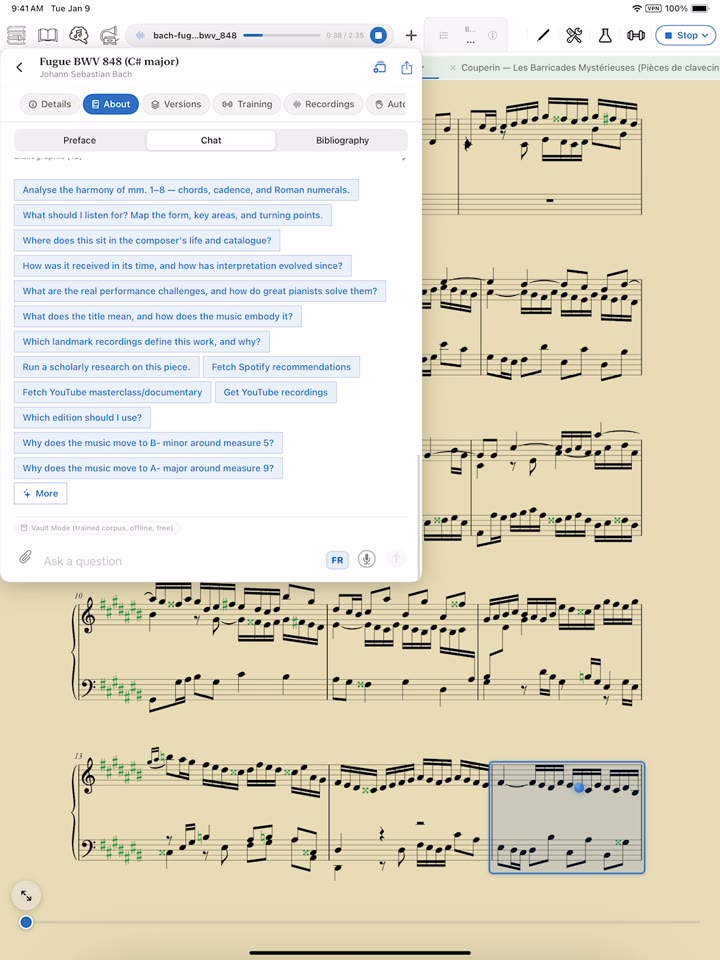
Talk opens Talk with our engine, a conversation scoped to the current analysis. Type into Disagree, ask why, or propose a fix… and send. The engine explains its reading, and when you argue for a change it answers with a Proposed change — the old figure struck through, the new one beside it, measure by measure.
Nothing in that diff is applied on its own. Tap Promote fix to submit the change for review; once the team accepts it, it improves the engine's future analyses for everyone. Promoted changes go through the same review queue as shared chip corrections.
Highlight the lyrics
For vocal scores, turn on Highlight lyrics on the score to colour the sung text on the engraved analysis, so you can line words up against the harmony. The switch is remembered, and it also applies immediately to the score in the reader.
Beta — Dense harmony, unusual notation, and imperfect conversion all affect the reading. If the figures look wrong everywhere rather than in spots, check the source notation first — see Fix a conversion — before correcting figure by figure.
For the other notation-aware tools, see Auto-fingering and Practice tools.
Did this page answer your question?
One tap. No message or account required.
Last reviewed 2026-07-18 · Beta · build 314